Content edit or layout change? Brief the right update for your AI-built website
Separate changes your content team can prepare from work that needs website development, using a small, practical update brief.
INSIDE DIGINESTFICTIONAL DEMO
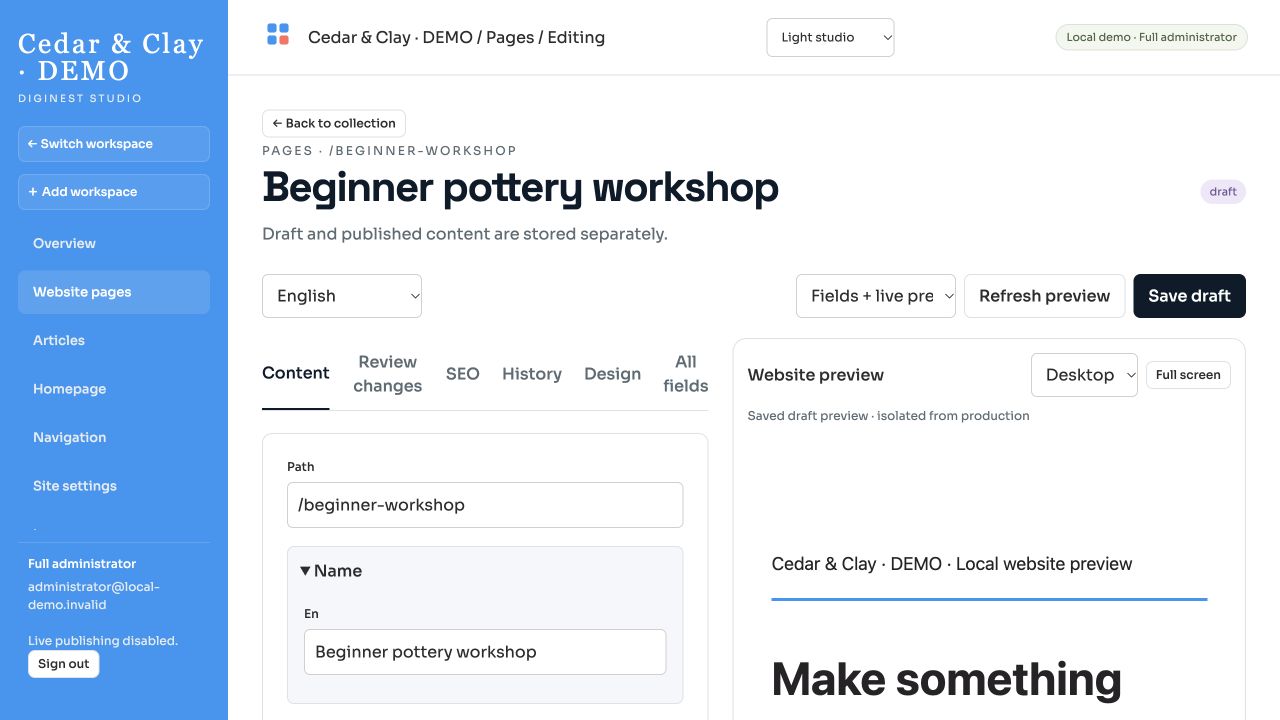
Your AI-built website is online, and the team wants to improve a service page. One person asks for a clearer introduction. Another wants a different arrangement of cards. A third wants a new booking step. Put all three into one request and it becomes difficult to tell who should do what.
Before the next update, sort the request into content, presentation and behavior. You can then prepare the words in DigiNest and give your website maintainer a clearer brief for anything that needs code.
1. Describe what visitors should see or do
Start with the result rather than the tool. Write the page address, what feels unclear and what should be different when the work is finished.
“Explain whether materials are included” is a useful content request. “Show two services beside each other on desktop” describes presentation. “Let visitors choose an appointment time” introduces behavior that needs its own implementation discussion.
Keep the first brief small. A screenshot with a note about the intended change can help your team identify the exact section without guessing.
2. Check which content is already editable
Ask your website maintainer which fields the connected site currently reads from DigiNest. Use that agreed list when assigning work to the content team. A heading or photograph appearing on the website does not prove that it has an editable CMS field.
DigiNest's connection review includes deciding which content should become editable and how the website renders it. If a needed field is missing, record that as a setup or development question. Repeatedly changing unrelated fields will not add the missing connection.
INSIDE DIGINESTFICTIONAL DEMO
3. Separate the requests without losing the context
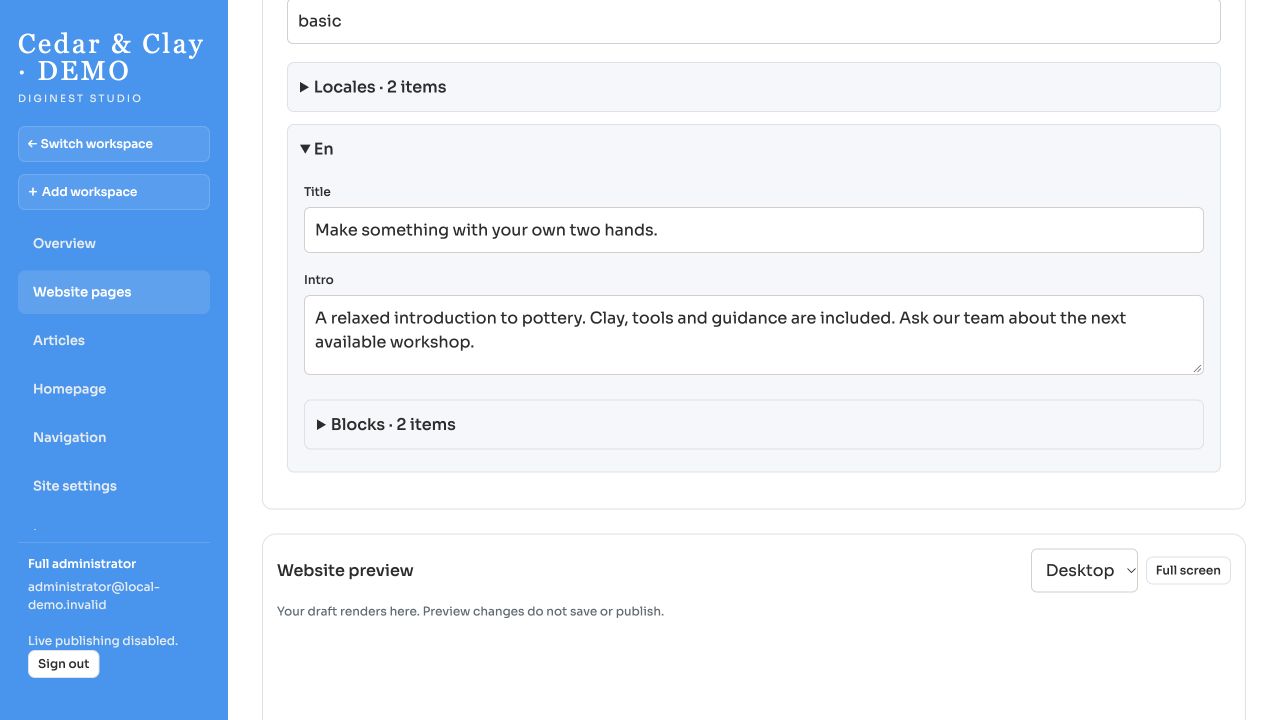
Fictional example: A craft workshop wants to explain that tools are provided, replace its introduction photograph and add a booking calendar. The coordinator confirms that the existing description and image fields are connected to the website. Those two changes become a content task. The calendar becomes a separate development brief describing the required booking process.
This business and field setup are illustrative. Check the actual fields and behavior of your own website before assigning the work.
Some requests span both kinds of work. A new comparison section may need approved text as well as a new page component. Keep the two tasks linked in your normal planning document, with an owner for each.
4. Give each task a visible completion check
For a content task, record the intended wording or approved image, the reviewer and the page where it should appear. Prepare that content in DigiNest using the supported fields.
For development work, describe the expected layout or interaction and ask the maintainer to confirm scope before implementation. Agree which preview the team will review and how the result will be checked on a phone and desktop.
If several language versions are involved, include them in both briefs. Text length, language links and missing-content behavior depend on the website implementation. Adding a language does not automatically translate the page or build those website features.
5. Bring the work together before release
Review the content and presentation in the same agreed preview. Confirm that the approved words fit their context and that any new interaction follows the agreed process. Arrange any submission or booking test with the responsible team beforehand.
DigiNest is the CMS; your website code controls its layout and behavior. Your repository, hosting account and domain remain customer-controlled, with hosting paid separately. New GitHub connections require assisted setup, a compatible website adapter and verified publishing. Saving connector settings alone does not activate publishing.
Finish with a brief that names the change, owner, reviewer and completion check. Use DigiNest's connection guide to agree which content your team should manage in the CMS.