
Write page headings that help visitors find the answer
Review one page as an outline, replace vague headings with useful labels and check that the website structure matches the words.
INSIDE DIGINESTFICTIONAL DEMO
A service page can contain the right information and still make visitors work to find it. Headings such as “Discover more” or “Our approach” may look polished, but they give little indication of which section explains preparation, inclusions or the next step.
Choose one page today and review its headings as a short outline. Your task is to make that outline describe the page clearly, then prepare the wording your team can review in DigiNest.
1. Read only the headings first
Copy the main heading and section headings into your normal planning document, keeping their current order. Read the list without the paragraphs beneath it.
Can you tell what the service is, which questions the page answers and where someone can learn what to do next? Mark headings that could belong to almost any business. Also note any important answer buried in a long section without a useful label.
Keep this exercise focused on the existing page. You are preparing an editorial outline, not automatically creating new website sections.
2. Make the main heading identify the offer
Write a heading that helps someone recognize the service or subject. A creative phrase can still work in the surrounding copy, but the page needs enough context to explain what is available.
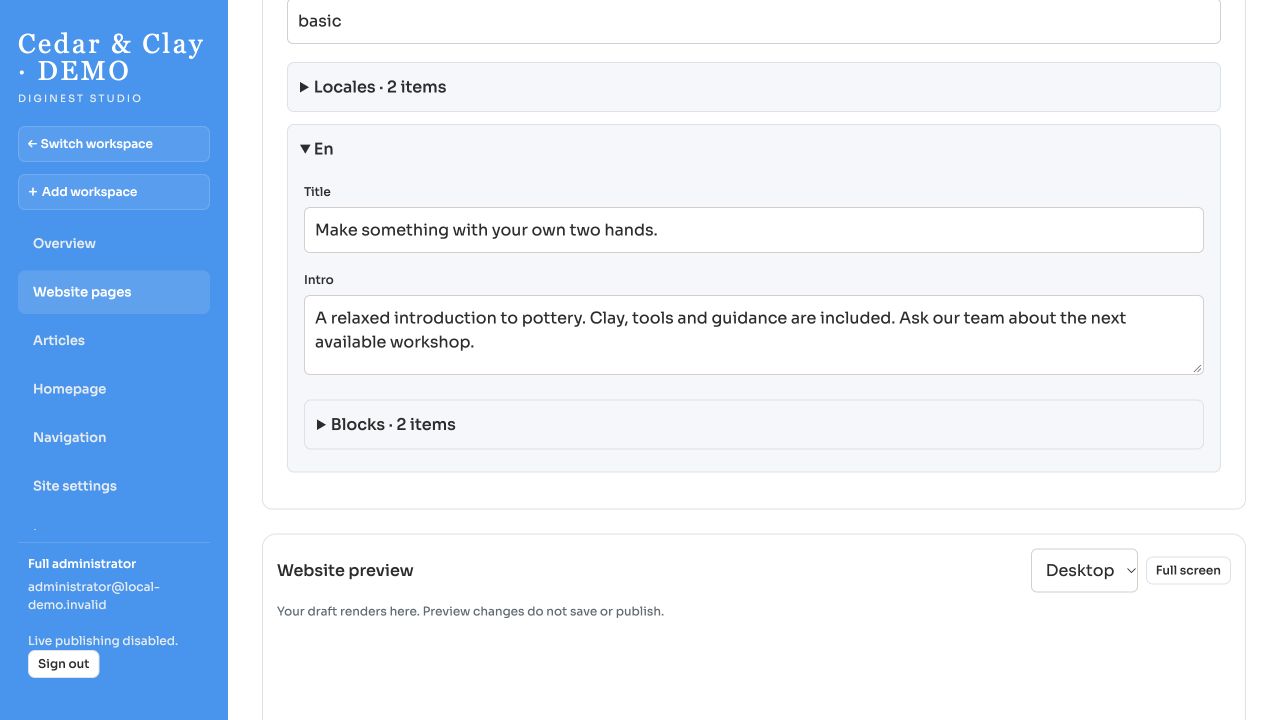
Fictional example: The Cedar & Clay demo page uses “Make something with your own two hands.” Its introduction explains that it offers beginner pottery workshops with clay and tools included. For a more direct opening, the fictional team could propose “Beginner pottery workshops with clay and tools included.”
That wording assumes those inclusions are confirmed. The screenshot shows the original dummy title and introduction, not a published customer result. Use facts your own team has approved when writing your heading.
3. Give each section one clear job
Replace a vague label with wording that describes the content beneath it. “What your workshop includes” tells readers more than “The experience.” “What to bring” identifies a practical preparation section.
Check the paragraph after each proposed heading. Does it deliver the information the heading promises? If the answer belongs elsewhere, move it in your content brief or discuss a structural change with your website maintainer.
Avoid turning every sentence into a heading. Group related information so the outline remains short enough to understand. Have someone unfamiliar with the draft read the headings and explain what they expect to find.
4. Check structure as well as appearance
W3C's accessibility guidance explains that headings communicate page organization and can support navigation by assistive technologies. Its tutorial recommends nesting heading levels to reflect the content structure. Read W3C's heading guidance.
Ask your website maintainer to confirm that the page uses actual heading elements in a sensible order. Making text larger or bold is a visual change; it does not establish the underlying heading structure. This check alone does not prove that the whole website is accessible.
Prepare the wording in DigiNest using fields your connected website supports. A new section or a different heading level may require website development. Do not assume every visible heading is already connected to an editable field.
5. Review the outline in the finished page
Check the agreed website preview on a phone and desktop. Read the headings in order, then check the answers beneath them. For multiple languages, ask an appropriate reviewer to check each version's meaning and fit; translation and website language behavior need separate verification.
DigiNest is the CMS. Your repository, hosting account and domain remain customer-controlled, with hosting paid separately. New GitHub connections require assisted setup, a compatible website adapter and verified publishing. Saving settings alone does not activate publishing.
Follow DigiNest's first-release walkthrough to check the approved headings on your connected public website.