
Write a website introduction that answers three customer questions
Draft a short opening that explains the offer, one useful detail and the next step, using a clearly labelled fictional DigiNest example.
INSIDE DIGINESTFICTIONAL DEMO
A visitor opens your service page and reads a warm welcome followed by a paragraph about your passion. They still cannot tell what you offer, whether it suits them or what to do next.
Give one page a more useful introduction today. Start with a short opening that helps someone understand the offer before they read the details. You do not need to rewrite the whole website.
Start with three plain questions
Read the current introduction without relying on the photograph or menu. Ask whether a new visitor can answer:
- What is this service or experience?
- What useful detail helps me understand it?
- What can I do next?
The useful detail might be what is included, who the service is for or how the first conversation works. Choose something your team has confirmed. Avoid adding a promise simply because it makes the paragraph sound stronger.
Keep a note of missing answers before editing. Sometimes the information is already further down the page and only needs a short introduction near the top.
Read the fictional example
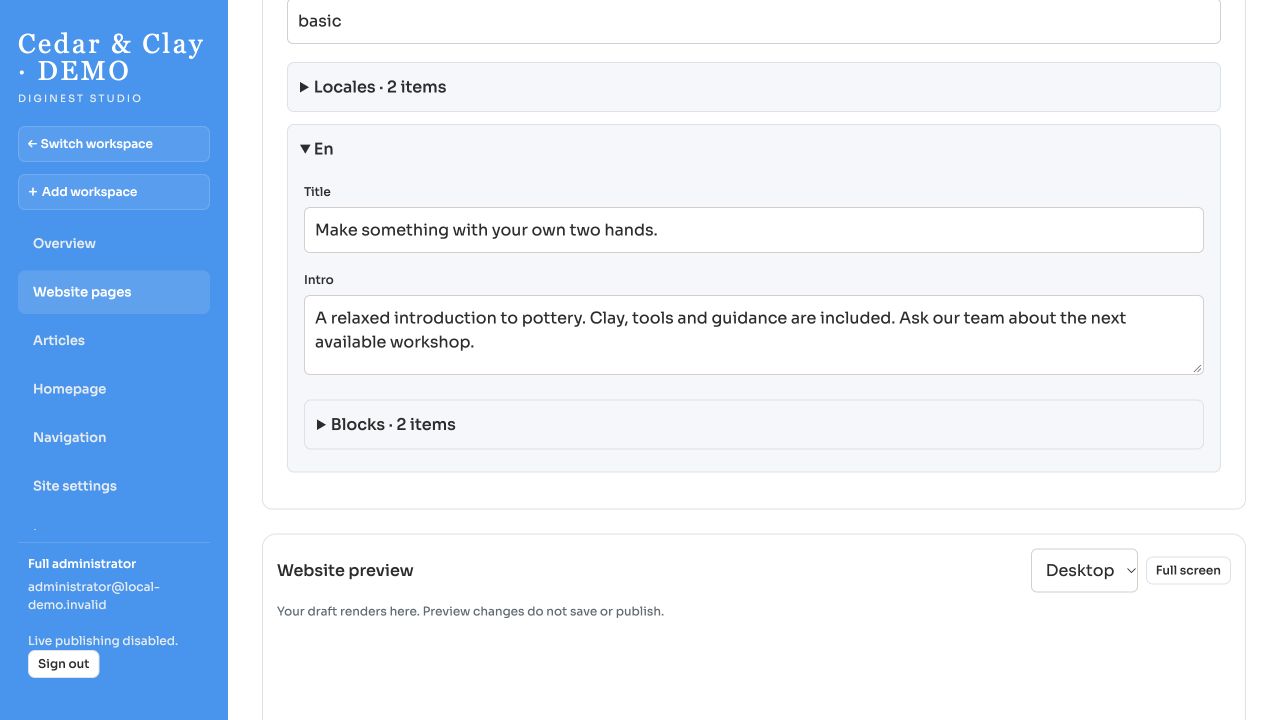
The screenshot shows the title and introduction fields in the local Cedar & Clay demo. Its dummy introduction reads:
A relaxed introduction to pottery. Clay, tools and guidance are included. Ask our team about the next available workshop.
The first sentence identifies the activity. The second explains an inclusion. The third gives a realistic next action: ask about availability. It does not say that submitting an enquiry confirms a booking.
This is a fictional business with dummy content. The screenshot is an editorial example, not evidence of a customer website connection or business result. Each sentence has a clear job.
Visitors may still need workshop dates, preparation instructions and other details before deciding to enquire. A short introduction helps them begin; it does not replace the service information below it.
Draft one short opening
Write an answer to each question in your normal working document. Bring the answers together in two or three natural sentences. This is a writing exercise, not an automatic DigiNest copywriting feature.
Use the service's familiar name rather than making readers decode an abstract phrase. Replace general claims such as “an unforgettable experience” with a useful, confirmed detail where possible. Keep the next step consistent with the actual destination of the nearby button or link.
For the fictional pottery page, a more direct first sentence could be “Beginner pottery workshops with clay, tools and guidance included.” The team could retain the invitation to ask about the next available workshop. This is proposed copy using the demo's stated activity and inclusions, not a published change to the pictured fields.
Have the person responsible for the service check the meaning. Ask a colleague to read only the introduction and explain what they think is offered. If their answer differs from the intended service, revise the words before polishing the style.
Check the words in the actual page
Prepare the approved introduction in DigiNest using fields your connected website supports. The demo has an Intro field; your own site's editable fields and display depend on its agreed implementation. A new section or different layout may need your website maintainer.
Read the introduction beside the heading, photograph and next-step link in the agreed preview. Check it on a phone as well as desktop. Remove repeated wording if the heading already supplies part of the answer.
For several languages, ask an appropriate reviewer to preserve the meaning and confirmed facts in each version. Do not assume automatic translation, synchronized edits or identical sentence lengths.
DigiNest is the CMS; your repository, hosting account and domain remain customer-controlled, with hosting paid separately. New GitHub connections need assisted setup, a compatible website adapter and verified publishing. Saving connector settings alone does not activate publishing.
Finish with one checked introduction and an agreed next step. Follow DigiNest's first-release walkthrough to verify the approved opening on your connected website.